Creating a fillable PDF form is pretty straightforward when you break it down. You start by designing the layout and questions in a document editor you're comfortable with—think Word or Google Docs. Once that's done, you bring it into a tool like Adobe Acrobat or a free alternative to add the magic: the interactive fields. This two-step process is what turns a static page into a dynamic tool for gathering information.
Your Blueprint for Designing User-Friendly PDF Forms
Before you even think about adding a single text box or checkbox, you need a solid plan. A great PDF form is more than just a document; it’s an experience designed to collect information without causing a headache. I’ve seen it time and time again: rushing this initial phase is the fastest way to create a confusing, frustrating form that people give up on halfway through.
First things first, what's the point of this form? Seriously, define its single most important goal. Are you trying to capture new sales leads? Gather in-depth feedback from existing customers? Or maybe just streamline an internal approval process? Each of these goals demands a different approach. A lead-gen form needs to be short, sweet, and to the point. An internal workflow document, on the other hand, might require more complex fields and built-in validation rules.
Mapping the User Journey
With your goal locked in, it's time to put yourself in the user's shoes. How will they move through this form? It's crucial to group related information together logically. For example, all the contact details should be in one clean block, and all the project-specific questions should be in another. This kind of thoughtful grouping prevents that "where am I?" feeling and makes the whole process feel intuitive.
"A form's success isn't measured by how much data it can hold, but by how easily a user can provide the right data. Every field should have a clear purpose, and every section should guide the user effortlessly to the end."
This initial planning is what separates a form that gets filled out from one that gets ignored. And businesses are catching on. The global PDF Form Builder market ballooned to an incredible $1.2 billion in 2024, and it's expected to hit $3.7 billion by 2033. That explosive growth shows just how vital effective digital forms have become for companies moving away from paper. North America is leading the pack, accounting for over 38% of that market in 2024, all driven by the relentless push for greater efficiency. You can discover more insights about the PDF Form Builder market trends to see how businesses are adapting.
Before you start building, it's worth taking a moment to formalize these planning steps. A little structure upfront saves a ton of rework later.
Essential Planning Steps for Your PDF Form
Follow these core planning stages before you start building to ensure your form is effective, user-friendly, and achieves its goal.
| Planning Stage | Objective | Key Considerations |
|---|---|---|
| Goal Definition | Clearly state the form's primary purpose. | Is it for data collection, lead generation, registration, or internal processes? Who is the target audience? |
| Content & Flow | Outline all necessary questions and organize them logically. | Group related fields (e.g., Personal Info, Payment Details). Order sections to match a natural thought process. |
| Layout & Design | Create a clean, visually intuitive document structure. | Use headings, white space, and clear instructions. Is the branding consistent? |
| Field Specification | Decide on the right type of field for each question. | Will a text box, checkbox, dropdown, or signature field work best? What validation is needed (e.g., date, email)? |
Taking the time to walk through these stages ensures you aren't just creating a document, but a well-oiled machine for data collection.
Structuring Your Layout for Clarity
Finally, let’s talk visuals. A clean, uncluttered design is non-negotiable for a good user experience. Use plenty of white space, clear headings, and a simple font hierarchy to guide the user's eye down the page. One common mistake is cramming fields too close together. Make sure there’s enough breathing room, which is especially important for anyone filling out the form on a phone or tablet. This foundational blueprint is the most critical part of creating PDF forms that don’t just work, but actually get results.
Choosing the Right PDF Form Creator for Your Needs
Alright, you’ve planned out your form’s fields and flow. Now comes the fun part: picking the software to actually build it. This choice is a big one, as it’ll shape not just how easy the form is to create, but also what it can do and how much it’ll cost you.
The market for PDF form creators is pretty crowded. You've got everything from the industry-standard powerhouse, Adobe Acrobat Pro, to a host of free tools that are surprisingly capable. The trick is to match the tool to the task you have, not the other way around. Don't pay for a bazooka when a fly swatter will do.
The Big Players vs. The Freebies
So, when do you need the professional-grade stuff? Adobe Acrobat Pro has been the top dog for a long time for good reason. If your form needs things like custom calculations using JavaScript, serious security for sensitive data, or legally binding digital signatures, Acrobat is where you'll likely land. It's built for those high-stakes, complex jobs.
But let's be realistic—most forms aren't that complex. For a simple contact form, an internal request sheet, or a basic feedback survey, a free tool might be all you need. Software like LibreOffice Draw lets you add standard form fields to any PDF without spending a dime. It's not as flashy, but it absolutely gets the job done for straightforward projects.
Thinking about your end goal can really help you decide which path to take.
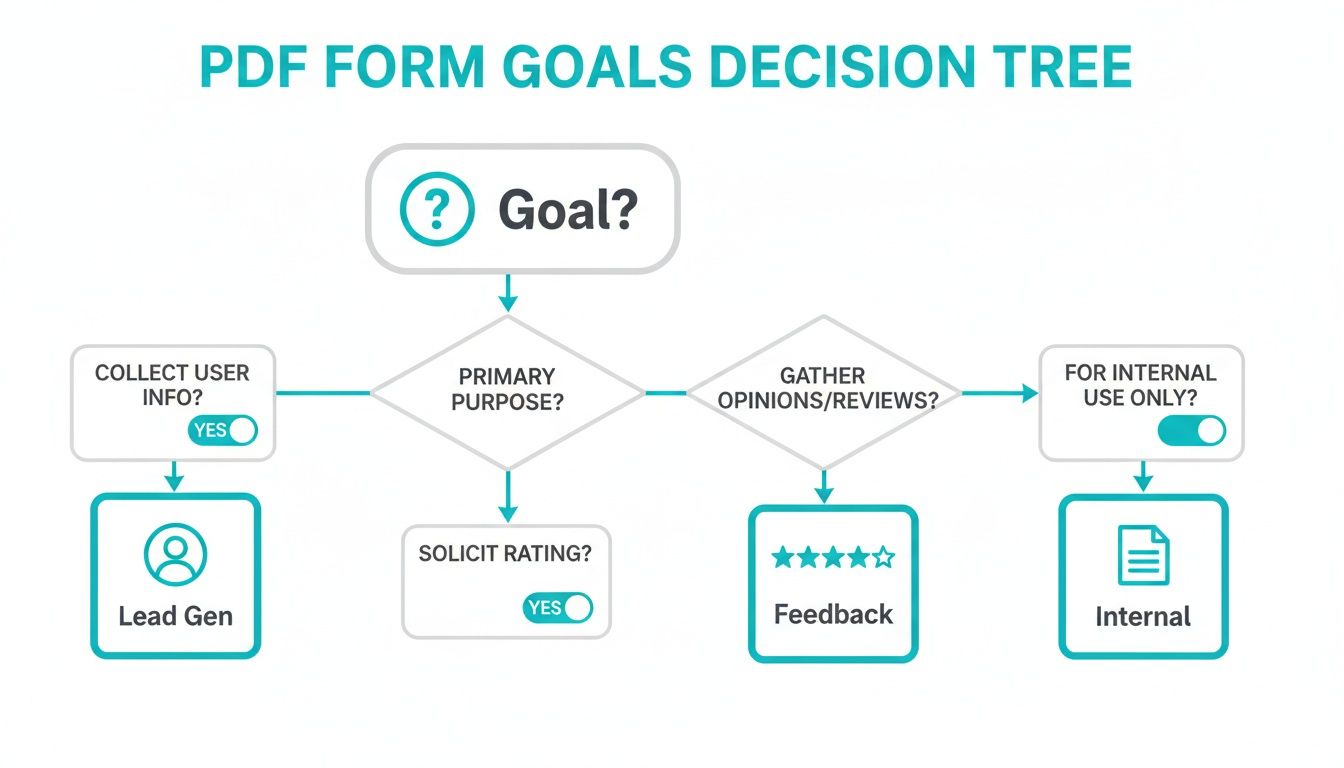
As you can see, whether you're gathering leads or just streamlining an internal process will point you toward different levels of tool complexity.
To give you a clearer picture, here’s a quick breakdown of how the big-name software compares to the average free option for common form-building tasks.
PDF Form Creator Feature Comparison
See how Adobe Acrobat Pro stacks up against popular free alternatives for the most common form-building features.
| Feature | Adobe Acrobat Pro | Free Alternatives (Average) |
|---|---|---|
| Basic Text Fields | Yes | Yes |
| Checkboxes & Radio Buttons | Yes | Yes |
| Dropdown Menus | Yes | Yes |
| Advanced Field Validation | Yes (Custom scripting) | Limited to basic types |
| Digital Signatures | Yes (Legally binding) | Basic e-sign or none |
| Calculations & Logic | Yes (JavaScript) | No |
| Accessibility Features | Yes (Advanced tagging) | Very limited or none |
| Security & Permissions | Yes (Password protection, etc.) | Basic or none |
This table makes it pretty clear: for basic data collection, free tools are great. But the moment you need advanced logic, security, or accessibility, investing in a professional tool like Acrobat Pro really starts to pay off.
What About Online Form Builders?
It's also worth mentioning that traditional PDF editors aren't your only option. A whole new world of online form builders has cropped up, and they're fantastic, especially when it comes to user experience and mobile-friendly design—two areas where PDFs can sometimes struggle.
These platforms often provide a great middle ground. They offer more robust features than the basic free PDF editors but without the steep learning curve of a full-blown professional suite. If you think this might be a better fit, this guide on the best online form builders is a great place to start your research.
The best tool isn't the one with the most features; it's the one that aligns perfectly with your project's complexity, your technical skill, and your budget. Overinvesting in a complex tool for a simple task can be just as inefficient as using a free tool that can't meet your needs.
To get a full sense of what’s out there for 2026 and beyond, take a look at these comprehensive reviews of the best form builder software options. This will give you a bird's-eye view of everything from dedicated PDF editors to slick, web-based platforms, ensuring you find the perfect match for your project.
Building Your Form with Interactive Fields and Validation
Alright, this is where the magic happens. Your static design is about to become a dynamic, interactive tool. Adding form fields is what actually makes a PDF fillable, but how you add them is what makes the difference between a frustrating chore and a smooth, intuitive experience for the user.
We're getting into the nitty-gritty here—the fundamental building blocks of any decent form. Think text boxes for names, checkboxes for when someone can pick more than one thing, and dropdown menus to keep lists from getting unwieldy. Each one has a specific job to do in guiding the user and making sure the data you get back is clean and structured.
Choosing the Right Field for the Job
This might seem obvious, but the type of field you choose dramatically affects both the user's experience and the quality of the data you collect. A poorly chosen field is a recipe for confusion and bad entries. For example, if you ask for a country in a plain text box, you’ll get typos and all sorts of variations. A dropdown menu, on the other hand, gives you standardized, perfect data every time.
Here are the essential fields I rely on and when to use them:
- Text Boxes: These are the workhorses. They're perfect for unique info like names, addresses, or any open-ended comments.
- Checkboxes: Use these when a user can select multiple options from a list, like "Select all hobbies that apply."
- Radio Buttons: These are for when a user must choose only one option from a list, like a simple "Yes" or "No." The options are mutually exclusive.
- Dropdown Menus: A real lifesaver for long lists. Think states, countries, or job titles. They keep the form looking clean and save the user from endless scrolling.
- Date Pickers: If you need a date, use a date picker. Period. It eliminates formatting errors and makes it effortless for users to pop in the right date.
Implementing Smart Validation to Prevent Errors
Just dropping fields onto the page isn’t enough; you need to make them intelligent. That’s where field validation comes in. Validation rules are basically constraints you put on a field to make sure the data is in the right format before the form is even submitted. It's your first line of defense against messy data.
A form without validation is like a conversation without rules—it can go anywhere, and you'll spend most of your time cleaning up the mess afterward. Smart validation guides the user to provide the right information from the start.
For instance, you can set a rule on a "Phone Number" field to only accept numbers. You can make sure an "Email" field actually looks like an email ([email protected]). These little automated checks make a huge difference, improving data accuracy and saving you from hours of manual cleanup down the road.
This is a critical step, but it's also where many people get stuck. The PDF Editor Software market, valued at $1.5 billion in 2023 and projected to hit $4.1 billion by 2032, is growing because people need these advanced features. Despite this, challenges remain; 70% of users admit they get frustrated with complex validation setups, which often leads to errors in 25% of submissions.
Thankfully, modern tools have made this much easier, letting you set these rules without writing a line of code. And if your form needs users to submit documents, you can take it a step further. Check out this guide on creating forms with file upload fields to add that capability.
Signatures, Accessibility, and Mobile-Friendly Design
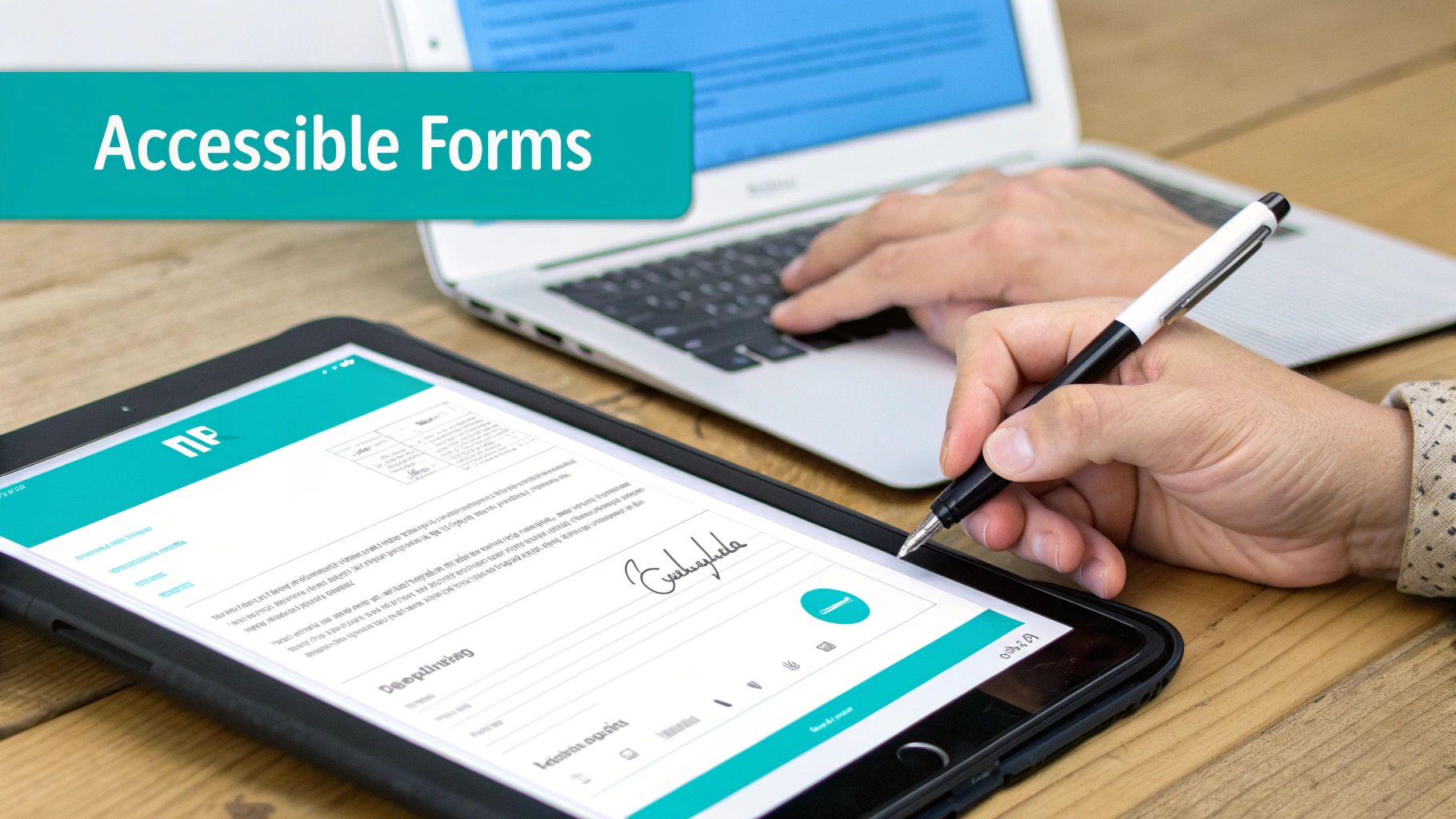
So you've built a form with all the right fields. That’s a solid foundation, but to make it truly effective in 2026, we need to go a few steps further. A modern form has to be secure, easy for everyone to use, and look good on a phone. These aren't just bonus features; they’re critical for building trust, meeting compliance standards, and actually getting people to fill out your form.
Let's start with something essential for any official document: digital signatures. A digital signature field isn't just a fancy image of a signature. It’s a secure and legally binding tool that lets people sign contracts, consent forms, and other agreements right inside the PDF.
Most professional PDF editors, like Adobe Acrobat, give you a dedicated signature field you can drag and drop onto your document, just like a text box. When someone clicks it, they’re prompted to use their unique digital ID, which locks the document with a verifiable, tamper-evident seal.
Making Sure Your Form Works for Everyone
Accessibility isn’t optional anymore. An accessible PDF form means that people who use assistive tech, like screen readers, can understand and fill it out just as easily as anyone else. If you skip this step, you're essentially putting up a "closed" sign for a big chunk of your audience.
Two things are absolutely crucial for PDF accessibility:
- Logical Tagging: Think of this as labeling everything on the page. Every heading, paragraph, and form field needs a "tag" that defines what it is. This tells a screen reader how to interpret the content and present it in a logical order.
- Correct Tab Order: You have to set the sequence for navigating through the form fields with the Tab key. This order needs to match the visual layout of the form. If it jumps around randomly, you’re creating an incredibly frustrating experience.
Fortunately, many advanced PDF editors have built-in accessibility checkers that flag these problems and guide you through fixing them, ensuring your form is usable by all.
A form that isn’t accessible is a form that willingly excludes potential respondents. Taking the time to add tags and set a logical tab order is a fundamental step toward creating a truly inclusive and effective data collection tool.
Optimizing for a Mobile-First World
I can't stress this enough: your form has to work on a phone. The numbers paint a clear picture. While 98% of businesses use PDFs for external communication, and there are over 2.5 trillion PDFs out there, there's a huge disconnect on mobile devices. Mobile now drives 60% of all web traffic, but static PDFs that aren't designed for small screens lead to a staggering 67% abandonment rate. You can learn more about these PDF usage statistics and see just how big the problem is.
To fix this, you have to think about the mobile experience from the start.
Use larger fonts so people aren't squinting. Make sure the form fields are big enough for someone to tap easily with their thumb. Stick to a simple, single-column layout whenever possible, because nobody wants to constantly pinch and zoom to fill out a form.
If you know a lot of your users will be on their phones, it's worth digging into the principles of what is mobile-first design. The insights there can help you build better experiences, not just for mobile, but for every device.
Testing and Distributing Your Form for Maximum Reach

You’ve built your form, but don't hit "send" just yet. Skipping the testing phase is a classic mistake—one that almost always leads to user frustration and messy, unusable data. This is your last chance to iron out the kinks and guarantee a smooth experience before your form is out in the wild.
Think of this as the final dress rehearsal. Does every single field work the way you expect? Are your validation rules catching errors properly? What happens when someone tries to jam letters into a phone number field? This is where you conduct thorough functional testing to confirm that every button, box, and drop-down menu does its job perfectly.
Your Pre-Launch Testing Checklist
Before you even think about sharing that PDF, you need to put it through its paces. This isn't just about clicking a few fields; it's about simulating what a real person will do, warts and all.
- Cross-Viewer Compatibility: Don't assume everyone uses Adobe Acrobat. Open your form in different PDF readers, major web browsers like Chrome and Firefox, and on a mobile device to see how it holds up. You're looking for any weird formatting or broken fields.
- Field Validation: Now, try to break it. Enter text where numbers should be. Type an email address without an "@" symbol. The goal is to make sure your custom error messages pop up exactly when they should.
- Tab Order: This is a huge accessibility and usability win. Use only the 'Tab' key to navigate the form. The cursor should jump logically from one field to the next, following the visual flow you designed.
- Reset Button Functionality: If you added a "Reset" or "Clear Form" button, give it a click. It should wipe all the data clean without messing with the form itself.
I can't stress this enough: don't just test the "happy path" where a user does everything correctly. The most critical insights come from actively trying to mess up the form. That's how you find the subtle bugs that drive real users crazy.
Smart Distribution and Security
Once your form has passed every test you can throw at it, you're ready to share. How you get it to your audience matters. For something that needs wide visibility, embedding the form on your website is a great option. For more direct, personal communication, an email attachment or a direct link is probably the way to go.
Finally, think about security. Most PDF tools let you add basic protections. You can set a password just to open the document, which is perfect for sensitive information. You can also restrict permissions to prevent people from editing the form's structure or even printing it. This level of control is essential for maintaining the integrity of official documents like contracts, applications, or HR paperwork.
Frequently Asked Questions About Creating PDF Forms
As you get your hands dirty creating PDF forms, you'll probably run into a few common questions. I see the same ones pop up all the time, so let's clear up some of the usual points of confusion to help you pick the right tools and approach.
It almost always starts with the same question: can I do this for free? Not everyone has the budget for a premium subscription, so let's look at the no-cost options.
What Is the Best Free Software to Create a Fillable PDF Form?
If you're looking for powerful, free tools in 2026, a few names consistently come up. For a full-featured, open-source experience, LibreOffice Draw is a solid choice. It's part of a complete office suite and has some serious form creation capabilities, but be prepared for a bit of a learning curve.
If you need something more intuitive, online editors are probably your best bet.
- Sejda is known for its simple, web-based interface.
- Jotform's PDF Editor offers a really smooth drag-and-drop experience.
Both are fantastic for building professional-looking forms quickly, just keep an eye on the limitations of their free plans, which often cap the number of forms or submissions you can have.
How Do I Make a PDF Form That Can Be Signed Electronically?
This is a huge one, especially for contracts or any official document. Thankfully, most modern PDF creators, both paid and free, have a dedicated digital signature field. When you're in the design stage, you'll just select the signature tool and draw a box where you want the signature to go.
When your recipient opens the file, they can click that field to apply their own unique, verifiable digital ID. This is a crucial distinction—it's far more secure and legally binding than just slapping an image of a signature onto the page.
Can I Convert an Existing Word Document into a Fillable PDF Form?
Yes, you absolutely can. In fact, this is one of the most efficient workflows I recommend. Go ahead and design the entire layout of your form—your text, tables, and company branding—in a program you already know well, like Microsoft Word.
Once you’ve nailed the look, just save it as a PDF.
Then, you'll open that static PDF in a program like Adobe Acrobat. Its ‘Prepare Form’ feature is incredibly smart; it automatically scans the document for things that look like form fields (like lines and boxes) and converts them into interactive elements for you. It saves a ton of manual work.
Why Isn't My Fillable PDF Working on a Phone?
Ah, the mobile problem. This is a classic headache with traditional PDF forms. The issue usually isn't your form but the viewer app on the phone. Not all mobile PDF readers fully support the interactive features you've built in, which can lead to a buggy or broken experience.
To give your form the best chance of working everywhere, keep the design simple. Stick to single-column layouts, use large, readable fonts, and make your form fields big enough for someone to tap easily with their thumb.
Before you send it out, always test it yourself on both an Android and an iOS device. Using the official Adobe Acrobat Reader mobile app for your tests is a good baseline to see if it will behave as expected.
Ready to move beyond the limitations of traditional PDFs? Formbot offers a modern approach with conversational, mobile-native forms. Build your first interactive form for free.